> ## Documentation Index
> Fetch the complete documentation index at: https://doc-test-my.mintlify.site/llms.txt
> Use this file to discover all available pages before exploring further.
# 1. Build Integration for Cards (New Integration)
> Steps to integrate S2S JSON API and accept payments using cards.
You can integrate with Razorpay APIs to start accepting card payments. Razorpay APIs support the latest 3DS2 authentication protocol. Integration does not differ for the challenge flow or frictionless flow.
**Watch Out!**
You must have a PCI compliance certificate to get this feature enabled on your account.
## Integration Steps
Follow the steps below to integrate S2S JSON API with browser flow and accept payments using cards.
**1.1** [Create an Order](#1-1-create-an-order).
**1.2** [Create a Payment](#1-2-create-a-payment).
**1.3** [Handle Payment Success and Error Events](#1-3-handle-payment-success-and-error-events).
**1.4** [Verify Payment Signature](#1-4-verify-payment-signature).
**1.5** [Integrate Payments Rainy Day Kit](#1-5-integrate-payments-rainy-day-kit).
**1.6** [Verify Payment Status](#1-6-verify-payment-status).
**Watch Out!**
Do not hardcode the URL returned in the API responses.
### 1.1 Create an Order
**Order is an important step in the payment process.**
* An order should be created for every payment.
* You can create an order using the [Orders API](#api-sample-code). It is a server-side API call. Know how to [authenticate](/docs/payments/dashboard/account-settings/api-keys#generate-api-keys) Orders API.
* The `order_id` received in the response should be passed to the checkout. This ties the order with the payment and secures the request from being tampered.
**Watch Out!**
Payments made without an `order_id` cannot be captured and will be automatically refunded. You must create an order before initiating payments to ensure proper payment processing.
#### API Sample Code
Use this endpoint to create an order using the Orders API.
`POST /orders`
```bash Curl theme={null}
curl -X POST https://api.razorpay.com/v1/orders
-U [YOUR_KEY_ID]:[YOUR_KEY_SECRET]
-H 'content-type:application/json'
-d '{
"amount": 100,
"currency": "MYR",
"receipt": "qwsaq1",
"partial_payment": true,
"first_payment_min_amount": 230,
"notes": {
"key1": "value3",
"key2": "value2"
}
}'
```
```java Java theme={null}
RazorpayClient razorpay = new RazorpayClient("[YOUR_KEY_ID]", "[YOUR_KEY_SECRET]");
JSONObject orderRequest = new JSONObject();
orderRequest.put("amount", 100); // amount in the smallest currency unit
orderRequest.put("currency", "MYR");
orderRequest.put("receipt", "order_rcptid_11");
Order order = razorpay.Orders.create(orderRequest);
} catch (RazorpayException e) {
// Handle Exception
System.out.println(e.getMessage());
}
```
```python Python theme={null}
import razorpay
client = razorpay.Client(auth=("YOUR_ID", "YOUR_SECRET"))
DATA = {
"amount": 100,
"currency": "MYR",
"receipt": "receipt#1",
"notes": {
"key1": "value3",
"key2": "value2"
}
}
client.order.create(data=DATA)
```
```php PHP theme={null}
$api = new Api($key_id, $secret);
$api->order->create(array('receipt' => '123', 'amount' => 100, 'currency' => 'MYR', 'notes'=> array('key1'=> 'value3','key2'=> 'value2')));
```
```csharp .NET theme={null}
RazorpayClient client = new RazorpayClient("[YOUR_KEY_ID]", "[YOUR_KEY_SECRET]");
Dictionary options = new Dictionary();
options.Add("amount", 100); // amount in the smallest currency unit
options.add("receipt", "order_rcptid_11");
options.add("currency", "MYR");
Order order = client.Order.Create(options);
```
```ruby Ruby theme={null}
require "razorpay"
Razorpay.setup('YOUR_KEY_ID', 'YOUR_SECRET')
options = amount: 100, currency: 'MYR', receipt: ''
order = Razorpay::Order.create
```
```javascript Node.js theme={null}
var instance = new Razorpay({ key_id: 'YOUR_KEY_ID', key_secret: 'YOUR_SECRET' })
instance.orders.create({
amount: 100,
currency: "MYR",
receipt: "receipt#1",
notes: {
key1: "value3",
key2: "value2"
}
})
```
```go Go theme={null}
import ( razorpay "github.com/razorpay/razorpay-go" )
client := razorpay.NewClient("YOUR_KEY_ID", "YOUR_SECRET")
data := map[string]interface{}{
"amount": 100,
"currency": "MYR",
"receipt": "some_receipt_id"
}
body, err := client.Order.Create(data)
```
```json Success Response theme={null}
{
"id": "order_IluGWxBm9U8zJ8",
"entity": "order",
"amount": 100,
"amount_paid": 0,
"amount_due": 100,
"currency": "MYR",
"receipt": "rcptid_11",
"offer_id": null,
"status": "created",
"attempts": 0,
"notes": [],
"created_at": 1642662092
}
```
```json Failure Response theme={null}
{
"error": {
"code": "BAD_REQUEST_ERROR",
"description": "Order amount less than minimum amount allowed",
"source": "business",
"step": "payment_initiation",
"reason": "input_validation_failed",
"metadata": {},
"field": "amount"
}
}
```
`amount` *mandatory*
: `integer` Payment amount in the smallest currency subunit. For example, if the amount is ₹500, enter `50000`.
`currency` *mandatory*
: `string` The currency in which the payment should be made by the customer. Length must be of 3 characters.
`receipt` *optional*
: `string` Your receipt id for this order should be passed here. Maximum length is 40 characters.
`notes` *optional*
: `json object` Key-value pair that can be used to store additional information about the entity. Maximum 15 key-value pairs, 256 characters (maximum) each. For example, `"note_key": "Beam me up Scotty”`.
`partial_payment` *optional*
: `boolean` Indicates whether the customer can make a partial payment. Possible values:
* `true`: The customer can make partial payments.
* `false` (default): The customer cannot make partial payments.
`first_payment_min_amount` *optional*
: `integer` Minimum amount that must be paid by the customer as the first partial payment. For example, if an amount of ₹7000 is to be received from the customer in two installments of #1 - ₹5000, #2 - ₹2000 then you can set this value as `500000`. This parameter should be passed only if `partial_payment` is `true`.
Know more about [Orders API](https://razorpay.com/docs/api/orders).
Descriptions for the response parameters are present in the [Orders Entity](/docs/api/orders/entity) parameters table.
The error response parameters are available in the [API Reference Guide](/docs/api/orders/create).
### 1.2 Create a Payment
After the order is created, your next step is to create a payment. The following API will create a payment with `card` as the payment method. The [`browser` parameters](/docs/payments/payment-gateway/s2s-integration/json/v2/build-integration/cards#:~:text=the%20authentication%20channel.-,browser,-mandatory) capture the customer's browser details, which are sent to the banks to aid their risk analysis.
#### Sample Code
```bash Request theme={null}
curl -X POST \
https://api.razorpay.com/v1/payments/create/json \
-u [YOUR_KEY_ID]:[YOUR_KEY_SECRET] \
-H "Content-Type: application/json" \
-d '{
"amount": 100,
"currency": "MYR",
"contact": "",
"email": "",
"order_id": "order_DPzFe1Q1dEOKed",
"method": "card",
"card":{
"number": "",
"name": "",
"expiry_month": "11",
"expiry_year": "30",
"cvv": "100"
},
"authentication":{
"authentication_channel": "browser"
},
"browser":{
"java_enabled": false,
"javascript_enabled": false,
"timezone_offset": 11,
"color_depth": 23,
"screen_width": 23,
"screen_height": 100
},
"ip": "105.106.107.108",
"referer": "https://merchansite.com/example/paybill",
"user_agent": "Mozilla/5.0"
}'
```
```json Response theme={null}
{
"razorpay_payment_id": "pay_PSix5yL6ycr4oI",
"next": [
{
"action": "redirect",
"url": "https://api.razorpay.com/v1/payments/PSix5yL6ycr4oI/authenticate"
},
{
"action": "otp_generate",
"url": "https://api.razorpay.com/v1/payments/pay_PSix5yL6ycr4oI/otp_generate?track_id=PSix5yL6ycr4oI&key_id=rzp_live_XXXXXXXXXXXXXX"
}
]
}
```
**Handy Tips**
The payment request and response would remain the same for both frictionless and challenge scenarios.
`amount` *mandatory*
: `integer` Payment amount in the smallest currency sub-unit. For example, if the amount to be charged is ₹299, then pass `29900` in this field.
`currency` *mandatory*
: `string` Currency code for the currency in which you want to accept the payment. For example, MYR. Refer to the list of supported currencies. The length must be 3 characters.
`order_id` *mandatory*
: `string` Unique identifier of the Order generated in the first step.
`email` *mandatory*
: `string` Email address of the customer. The maximum length supported is 40 characters.
`contact` *mandatory*
: `string` Phone number of the customer. The maximum length supported is 15 characters, inclusive of country code.
`method` *mandatory*
: `string` Name of the payment method. Possible value is `card`.
`card` *mandatory*
: `object` Details associated with the card.
`number`
: `string` Unformatted card number.
`name`
: `string` Name of the cardholder.
`expiry_month`
: `string` Expiry month for the card in MM format.
`expiry_year`
: `string` Expiry year for the card in YY format.
`cvv`
: `string` CVV printed on the back of the card.
`user-agent` *mandatory*
: `string` The User-Agent header of the user's browser. The default value will be passed by Razorpay if not provided by you.
`ip` *mandatory*
: `string` The customer's IP address.
`authentication` *optional*
: `object` Details of the authentication channel.
`authentication_channel`
: `string` The authentication channel for the payment. Possible values:
* `browser` (default)
* `app`
`browser` *mandatory*
: `object` Information regarding the customer's browser. This parameter need not be passed when `authentication_channel=app`.
`java_enabled`
: `boolean` Indicates whether the customer's browser supports Java. Obtained from the `navigator` HTML DOM object. Possible values:
* `true`: Customer's browser supports Java.
* `false`: Customer's browser does not support Java.
`javascript_enabled`
: `boolean` Indicates whether the customer's browser can execute JavaScript. Obtained from the `navigator` HTML DOM object. Possible values:
* `true`: Customer's browser can execute JavaScript.
* `false`: Customer's browser cannot execute JavaScript.
`timezone_offset`
: `integer` Time difference between UTC time and the cardholder's browser local time. Obtained from the `getTimezoneOffset()` method applied to the `Date` object.
`screen_width`
: `integer` Total width of the payer's screen in pixels. Obtained from the `screen.width` HTML DOM property.
`screen_height`
: `integer` Obtained from the `navigator` HTML DOM object.
`color_depth`
: `integer` Obtained from the payer's browser using the `screen.colorDepth` HTML DOM property.
`language`
: `string` Obtained from the payer's browser using the `navigator.language` HTML DOM property. Maximum limit of 8 characters.
`notes` *optional*
: `object` Key-value object used for passing tracking info. Refer to [Notes](/docs/api/understand#notes) for more details.
`callback_url` *optional*
: `string` URL endpoint where Razorpay will submit the final payment status.
`referrer` *optional*
: `string` Referrer header passed by the client's browser.
If the payment request is valid, the response contains the following fields.
`razorpay_payment_id`
: `string` Unique identifier of the payment. Present for all responses.
`next`
: `array` A list of action objects available to you to continue the payment process. Present when the payment requires further processing.
`action`
: `string` An indication of the next step available to you to continue the payment process. Possible values:
* `otp_generate`: Use this URL to allow the customer to generate OTP and complete the payment on your webpage.
* `redirect`: Use this URL to redirect the customer to submit the OTP on the bank page.
`url`
: `string` URL to be used for the action indicated.
#### OTP Generation
If you would like the customer to enter the OTP on your website instead of the bank page, use the `otp_generate` URL. When this URL is triggered, you get the following response:
```bash Curl theme={null}
curl -u [YOUR_KEY_ID]
-X POST https://api.razorpay.com/v1/payments/pay_FVmAstJWfsD3SO/otp_generate
-H "Content-Type: application/json" \
```
```java Java theme={null}
RazorpayClient razorpay = new RazorpayClient("[YOUR_KEY_ID]", "[YOUR_KEY_SECRET]");
RazorpayClient razorpayclient = new RazorpayClient("key",""); // Use Only razorpay key
String paymentId = "pay_FVmAstJWfsD3SO";
Payment payment = razorpayclient.payments.otpGenerate(paymentId);
```
```php PHP theme={null}
$api = new Api($key_id, $secret);
$api->payment->fetch($paymentId)->otpGenerate();
```
```javascript Node.js theme={null}
var instance = new Razorpay({ key_id: 'YOUR_KEY_ID', key_secret: 'YOUR_SECRET' })
instance.payments.otpGenerate();
```
```ruby Ruby theme={null}
require "razorpay"
Razorpay.setup('YOUR_KEY_ID', 'YOUR_SECRET')
#Use Only razorpay key
Razorpay.setup("key", "")
paymentId = "pay_FVmAstJWfsD3SO";
Razorpay::Payment.otp_generate(paymentId)
```
```csharp .NET theme={null}
RazorpayClient client = new RazorpayClient("[YOUR_KEY_ID]", "[YOUR_KEY_SECRET]");
RazorpayClient instance = new RazorpayClient("key",""); // Use Only razorpay key
string paymentId = "pay_Z6t7VFTb9xHeOs";
Payment payment = client.Payment.OtpGenerate(paymentId);
```
```json Response theme={null}
{
"razorpay_payment_id": "pay_FVmAstJWfsD3SO",
"next": [
{
"action": "otp_submit",
"url": "https://api.razorpay.com/v1/payments/pay_FVmAstJWfsD3SO/otp_submit/ac2d415a8be7595de09a24b41661729fd9028fdc?key_id="
},
{
"action": "otp_resend",
"url": "https://api.razorpay.com/v1/payments/pay_FVmAstJWfsD3SO/otp_resend/json?key_id="
}
],
"metadata": {
"issuer": "ARBK",
"network": "MC",
"last4": "0153",
"iin": "438628"
}
}
```
#### Path Parameter
`id` *mandatory*
: `string` Unique identifier of the payment.
#### Response Parameters
If the payment request is valid, the response contains the following fields.
`razorpay_payment_id`
: `string` Unique identifier of the payment. Present for all responses.
`next`
: `array` A list of action objects available to you to continue the payment process. Present when the payment requires further processing.
`action`
: `string` An indication of the next step available for payment processing. Possible values:
* `opt_submit` - Use this URL to allow the customer to submit OTP and complete the payment on your webpage.
* `opt_resend` - Use this URL to resend OTP to the customer.
`url`
: `string` URL to be used for the action indicated.
If the customer faces any latency issues, you can choose to cancel this request and redirect the customer to the bank page to enter the OTP and complete the payment. Thus, you can avoid payment failure by switching the customer to the bank page payment flow.
#### Response on Submitting OTP
Razorpay sends the respective success or failure response after the customer submits the OTP on your page.
The following endpoint submits the OTP:
`POST payments/:id/otp/submit`
```bash Curl theme={null}
curl -X POST \
'https://api.razorpay.com/v1/payments/pay_D5jmY2H6vC7Cy3/otp/submit' \
-u [YOUR_KEY_ID]:[YOUR_KEY_SECRET] \
-H "Content-Type: application/x-www-form-urlencoded" \
-d 'otp=123456'
```
```java Java theme={null}
RazorpayClient razorpay = new RazorpayClient("[YOUR_KEY_ID]", "[YOUR_KEY_SECRET]");
String paymentId = "pay_D5jmY2H6vC7Cy3";
String jsonRequest = "{\n" +
" \"otp\": \"123456\",\n" +
"}";
JSONObject requestJson = new JSONObject(jsonRequest);
Payment payment = razorpayclient.payments.otpSubmit(paymentId, requestJson);
```
```php PHP theme={null}
$api = new Api($key_id, $secret);
$api->payment->fetch($paymentId)->otpSubmit(array('otp'=> '12345'));
```
```javascript Node.js theme={null}
var instance = new Razorpay({ key_id: 'YOUR_KEY_ID', key_secret: 'YOUR_SECRET' })
instance.payments.otpSubmit(paymentId,{otp:'12345'})
```
```ruby Ruby theme={null}
require "razorpay"
Razorpay.setup('YOUR_KEY_ID', 'YOUR_SECRET')
para_attr = {
"otp": "123456"
}
paymentId = "pay_D5jmY2H6vC7Cy3";
Razorpay::Payment.otp_generate(paymentId, para_attr)
```
```csharp .NET theme={null}
RazorpayClient client = new RazorpayClient("[YOUR_KEY_ID]", "[YOUR_KEY_SECRET]");
string paymentId = "pay_Z6t7VFTb9xHeOs";
Dictionary paymentRequest = new Dictionary();
paymentRequest.Add("otp", "123456");
Payment payment = client.Payment.OtpSubmit(paymentId, paymentRequest);
```
```json Success Response theme={null}
{
"razorpay_payment_id": "pay_D5jmY2H6vC7Cy3",
"razorpay_order_id": "order_9A33XWu170gUtm",
"razorpay_signature": "9ef4dffbfd84f1318f6739a3ce19f9d85851857ae648f114332d8401e0949a3d"
}
```
```json Failure Response theme={null}
{
"error": {
"code" : "BAD_REQUEST_ERROR",
"description": "payment processing failed because of incorrect otp"
},
"next": ["otp_submit", "otp_resend"]
}
```
After the payment is completed, the final response is posted to the URL given in `callback_url` of the request, and can then be verified.
### 1.3 Handle Payment Success and Error Events
Once the payment is completed by the customer, a `POST` request is made to the `callback_url` provided in the payment request. The data contained in this request will depend on whether the payment was a **success** or a **failure**.
#### Success Callback
If the payment made by the customer is successful, the following fields are sent:
* `razorpay_payment_id`
* `razorpay_order_id`
* `razorpay_signature`
```json Callback Example theme={null}
{
"razorpay_payment_id": "pay_29QQoUBi66xm2f",
"razorpay_order_id": "order_9A33XWu170gUtm",
"razorpay_signature": "9ef4dffbfd84f1318f6739a3ce19f9d85851857ae648f114332d8401e0949a3d"
}
```
#### Failure Callback
If the payment has failed, the callback will contain details of the error. Refer to [Errors](/docs/errors) for details.
### 1.4 Verify Payment Signature
Signature verification is a mandatory step to ensure that the callback is sent by Razorpay. The `razorpay_signature` contained in the callback can be regenerated by your system and verified as follows.
Create a string to be hashed using the `razorpay_payment_id` contained in the callback and the Order ID generated in the first step, separated by a `|`. Hash this string using SHA256 and your API Secret.
```
generated_signature = hmac_sha256(order_id + "|" + razorpay_payment_id, secret);
if (generated_signature == razorpay_signature) {
payment is successful
}
```
#### Generate Signature on your Server
```java Java theme={null}
/**
* This class defines common routines for generating
* authentication signatures for Razorpay Webhook requests.
*/
public class Signature
{
private static final String HMAC_SHA256_ALGORITHM = "HmacSHA256";
/**
* Computes RFC 2104-compliant HMAC signature.
* * @param data
* The data to be signed.
* @param key
* The signing key.
* @return
* The Base64-encoded RFC 2104-compliant HMAC signature.
* @throws
* java.security.SignatureException when signature generation fails
*/
public static String calculateRFC2104HMAC(String data, String secret)
throws java.security.SignatureException
{
String result;
try {
// get an hmac_sha256 key from the raw secret bytes
SecretKeySpec signingKey = new SecretKeySpec(secret.getBytes(), HMAC_SHA256_ALGORITHM);
// get an hmac_sha256 Mac instance and initialize with the signing key
Mac mac = Mac.getInstance(HMAC_SHA256_ALGORITHM);
mac.init(signingKey);
// compute the hmac on input data bytes
byte[] rawHmac = mac.doFinal(data.getBytes());
// base64-encode the hmac
result = DatatypeConverter.printHexBinary(rawHmac).toLowerCase();
} catch (Exception e) {
throw new SignatureException("Failed to generate HMAC : " + e.getMessage());
}
return result;
}
}
```
```php PHP theme={null}
use Razorpay\Api\Api;
$api = new Api($key_id, $key_secret);
$attributes = array('razorpay_signature' => '23233', 'razorpay_payment_id' => '332' , 'razorpay_order_id' => '12122');
$order = $api->utility->verifyPaymentSignature($attributes)
```
```ruby Ruby theme={null}
require 'razorpay'
Razorpay.setup('key_id', 'key_secret')
payment_response = {
'razorpay_order_id': '12122',
'razorpay_payment_id': '332',
'razorpay_signature': '23233'
}
Razorpay::Utility.verify_payment_signature(payment_response)
```
```python Python theme={null}
import razorpay
client = razorpay.Client(auth=("YOUR_ID", "YOUR_SECRET"))
client.utility.verify_payment_signature({
'razorpay_order_id': razorpay_order_id,
'razorpay_payment_id': razorpay_payment_id,
'razorpay_signature': razorpay_signature
})
```
```c .NET theme={null}
Dictionary attributes = new Dictionary();
attributes.Add("razorpay_payment_id", paymentId);
attributes.Add("razorpay_order_id", Request.Form["razorpay_order_id"]);
attributes.Add("razorpay_signature", Request.Form["razorpay_signature"]);
Utils.verifyPaymentSignature(attributes);
```
```javascript Node.js theme={null}
var { validatePaymentVerification } = require('./dist/utils/razorpay-utils');
validatePaymentVerification({"order_id": razorpayOrderId, "payment_id": razorpayPaymentId }, signature, secret);
```
```go Go theme={null}
import (
"crypto/hmac"
"crypto/sha256"
"crypto/subtle"
"encoding/hex"
"fmt"
)
func main() {
signature := "477d1cdb3f8122a7b0963704b9bcbf294f65a03841a5f1d7a4f3ed8cd1810f9b"
secret := "testWebhookSecret7654321"
data := "order_J2AeF1ZpvfqRGH|pay_J2AfAxNHgqqBiI"
//fmt.Printf("Secret: %s Data: %s\n", secret, data)
// Create a new HMAC by defining the hash type and the key (as byte array)
h := hmac.New(sha256.New, []byte(secret))
// Write Data to it
_, err := h.Write([]byte(data))
if err != nil {
panic(err)
}
// Get result and encode as hexadecimal string
sha := hex.EncodeToString(h.Sum(nil))
fmt.Printf("Result: %s\n", sha)
if subtle.ConstantTimeCompare([]byte(sha), []byte(signature)) == 1 {
fmt.Println("Works")
}
}
```
### 1.5 Integrate Payments Rainy Day Kit
Use Payments Rainy Day kit to overcome payments exceptions such as:
* [Late Authorisation](/docs/payments/payments/late-authorisation)
* [Payment Errors](/docs/errors)
### 1.6 Verify Payment Status
**Handy Tips**
On the Razorpay Dashboard, ensure that the payment status is `captured`. Refer to the payment capture settings page to know how to [capture payments automatically](/docs/payments/payments/capture-settings).
To verify the payment status from the Razorpay Dashboard:
1. Log in to the Razorpay Dashboard and navigate to **Transactions** → **Payments**.
2. Check if a **Payment Id** has been generated and note the status. In case of a successful payment, the status is marked as **Captured**.
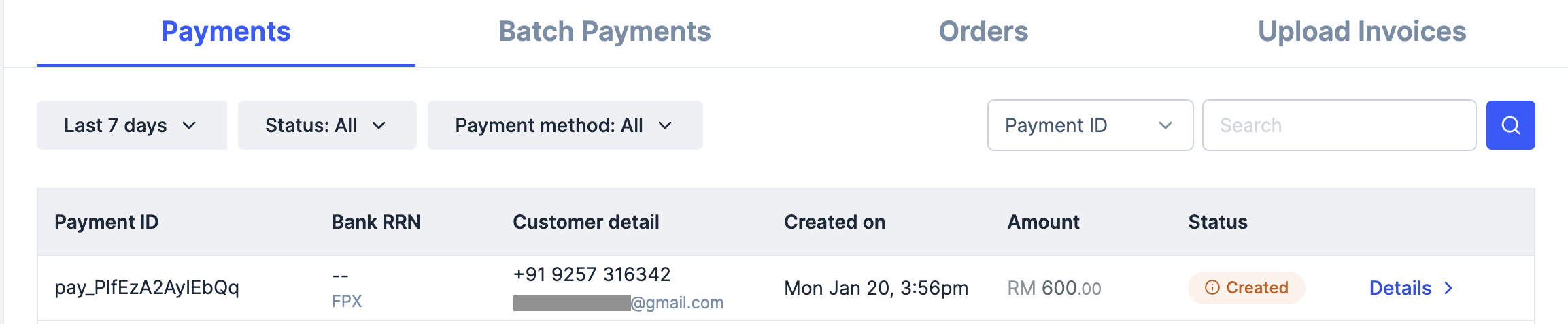 You can use Razorpay webhooks to configure and receive notifications when a specific event occurs. When one of these events is triggered, we send an HTTP POST payload in JSON to the webhook's configured URL. Know how to [set up webhooks.](/docs/webhooks/setup-edit-payments)
#### Example
If you have subscribed to the `order.paid` webhook event, you will receive a notification every time a customer pays you for an order.
[Poll Payment APIs](/docs/api/payments/fetch-all-payments) to check the payment status.
#### Test Cards
Use the following test cards for Indian payments:
| Network | Card Number | CVV & Expiry Date |
| ---------- | ------------------- | ------------------------------------------ |
| Visa | 4100 2800 0000 1007 | Use a random CVV and any future date ^^^^^ |
| Mastercard | 5500 6700 0000 1002 | |
| RuPay | 6527 6589 0000 1005 | |
| Diners | 3608 280009 1007 | |
| Amex | 3402 560004 01007 | |
#### Error Scenarios
Use these test cards to simulate payment errors. See the [complete list](/docs/payments/payments/test-card-details#error-scenario-test-cards) of error test cards with detailed scenarios.
Check the following lists:
* [Supported Card Networks](https://razorpay.com/docs/payments/payment-methods/cards).
* [Cards Error Codes](/docs/errors/payments/cards).
## Next Steps
[Step 2: Test Integration](/docs/payments/payment-gateway/s2s-integration/json/v2/test-integration)
You can use Razorpay webhooks to configure and receive notifications when a specific event occurs. When one of these events is triggered, we send an HTTP POST payload in JSON to the webhook's configured URL. Know how to [set up webhooks.](/docs/webhooks/setup-edit-payments)
#### Example
If you have subscribed to the `order.paid` webhook event, you will receive a notification every time a customer pays you for an order.
[Poll Payment APIs](/docs/api/payments/fetch-all-payments) to check the payment status.
#### Test Cards
Use the following test cards for Indian payments:
| Network | Card Number | CVV & Expiry Date |
| ---------- | ------------------- | ------------------------------------------ |
| Visa | 4100 2800 0000 1007 | Use a random CVV and any future date ^^^^^ |
| Mastercard | 5500 6700 0000 1002 | |
| RuPay | 6527 6589 0000 1005 | |
| Diners | 3608 280009 1007 | |
| Amex | 3402 560004 01007 | |
#### Error Scenarios
Use these test cards to simulate payment errors. See the [complete list](/docs/payments/payments/test-card-details#error-scenario-test-cards) of error test cards with detailed scenarios.
Check the following lists:
* [Supported Card Networks](https://razorpay.com/docs/payments/payment-methods/cards).
* [Cards Error Codes](/docs/errors/payments/cards).
## Next Steps
[Step 2: Test Integration](/docs/payments/payment-gateway/s2s-integration/json/v2/test-integration)