> ## Documentation Index
> Fetch the complete documentation index at: https://doc-test-my.mintlify.site/llms.txt
> Use this file to discover all available pages before exploring further.
# Subscriptions Settings
> Configure payment method settings for Razorpay Curlec Subscriptions.
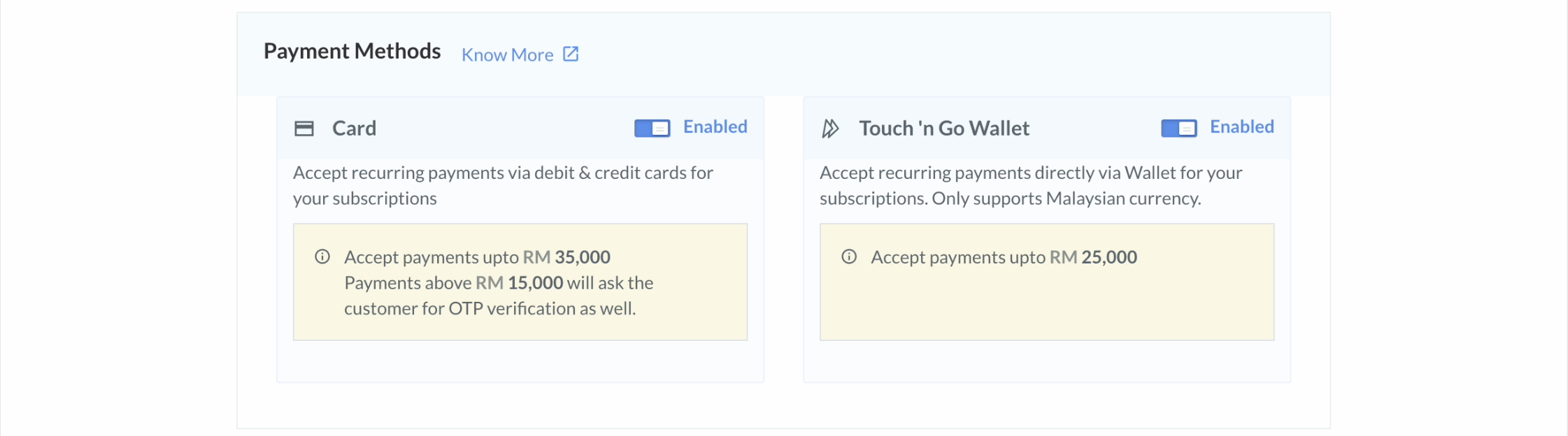
You can configure payment methods such as Cards and Wallets (Touch'n Go) using which you would like to accept subscription payments from your customers.
**Handy Tips**
Cards and Wallets (Touch'n Go) currently support recurring payments up to RM 25,000.
## Enable Payment Methods
To enable payment methods:
1. Log in to the Dashboard and click **Subscriptions** under **PAYMENT PRODUCTS** in the left menu.
2. Go to **Settings**.
3. Enable the payment methods.
- **Card**: Enable this to accept recurring payments via cards for your Subscriptions.
- **Touch'n Go**: Enable this to accept payments through the Touch'n Go wallet when a recurring charge is less than RM 25,000.
 ### Related Information
* [Create and View Plans](/docs/payments/subscriptions/create-plans)
* [Create Subscriptions via Links](/docs/payments/subscriptions/create-subscription-links)
* [Charge a Card Manually](/docs/payments/subscriptions/manually-charge-card)
* [Update a Subscription](/docs/payments/subscriptions/update)
### Related Information
* [Create and View Plans](/docs/payments/subscriptions/create-plans)
* [Create Subscriptions via Links](/docs/payments/subscriptions/create-subscription-links)
* [Charge a Card Manually](/docs/payments/subscriptions/manually-charge-card)
* [Update a Subscription](/docs/payments/subscriptions/update)