

Available in🇮🇳 India🇲🇾 Malaysia🇸🇬 Singapore🇺🇸 United States
Understand the complete end-to-end flow about how you can use Razorpay Curlec Payment Links.
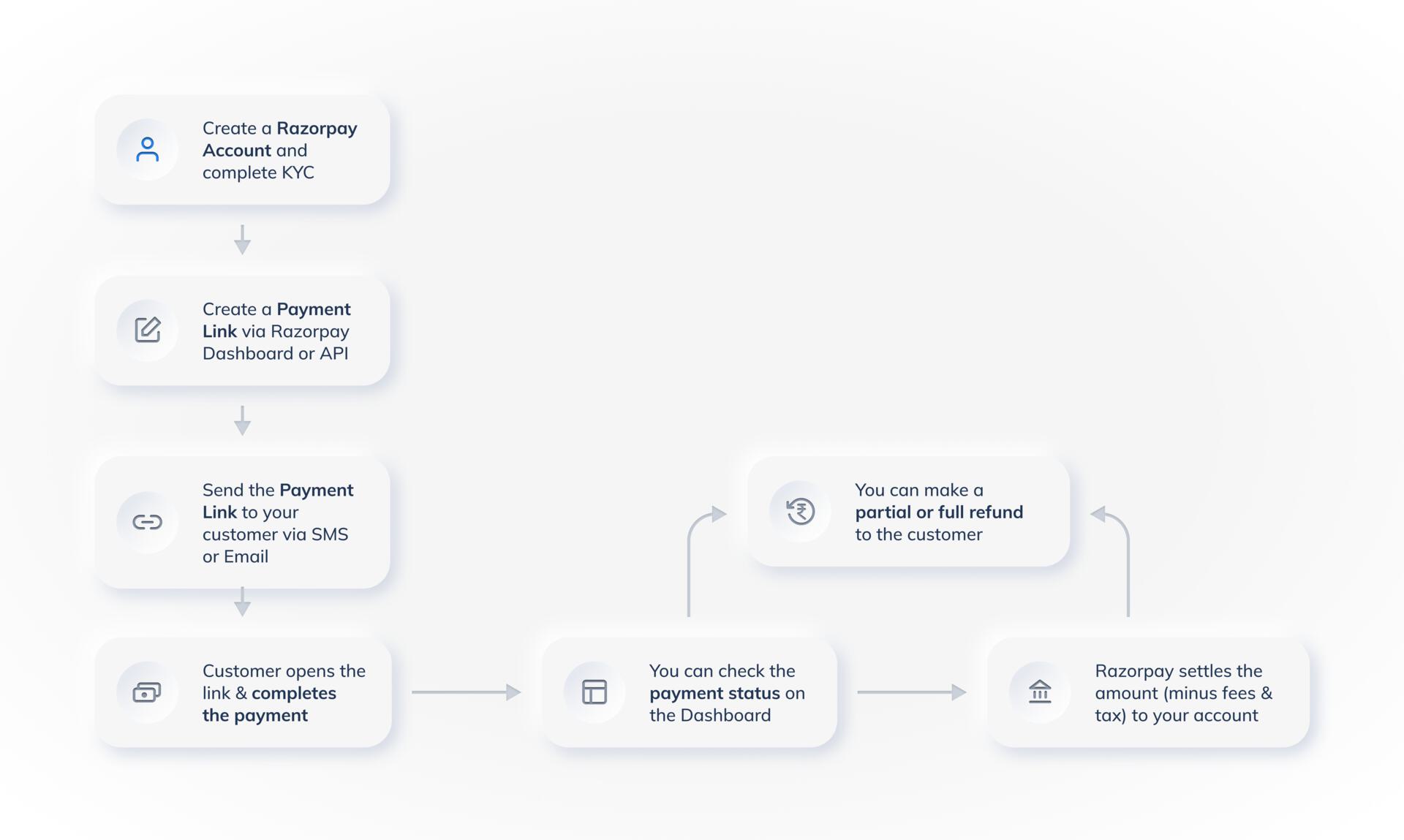
Workflow
The steps given below give a detailed view on the lifecycle of a Payment Link.Step 1: Create a Payment Link
Step 1: Create a Payment Link
Create a Payment Link by providing all the required details. You can set an expiry date and enable partial payments.
Step 2: Send a Payment Link
Step 2: Send a Payment Link
Send a Payment Link to a customer by email. The customer receives the link by email. SMS isn’t available for Payment Links in Malaysia. They can open the link and pay using one of the available payment methods.
Step 3: Receive Payments
Step 3: Receive Payments
The customer clicks the Payment Link and tries to make the payment.
- The customer makes the payment. If partial payment is enabled, the customer can choose the amount to be paid.
- The customer chooses the mode of payment.
paid or partially paid. You receive a notification about the payment.Handy TipsAfter the payment is captured, the amount is settled to your account as per the settlement schedule. Know more about payments, settlements and refunds .
Step 4: Track Payment Links and Reports
Step 4: Track Payment Links and Reports
- Notifications: You receive notifications regarding activity on Payment Links via emails and webhook. Know more about subscribing to Webhooks.
- Track Payments: Track payments made against the issued Payment Links on Dashboard. Click Payment Links from the left menu. All the links are listed with their status under Payment Links.
- Reports: Detailed insights can be gained using reports and real-time data on the Dashboard. These reports can then be used for accounting and reconciliation purposes. Know more about reports.