

Available in🇮🇳 India🇲🇾 Malaysia🇸🇬 Singapore
Follow the steps given below to integrate Razorpay Curlec Payment Gateway with your CS-Cart website.1. Build Integration
Install and configure the CS-Cart plugin.
2. Test Integration
Test the integration by making a test payment.
3. Go-Live Checklist
Check the go-live checklist.
1. Build Integration
Follow the steps given below:1 Installation
1 Installation
- Ensure you have the latest version of CS-Cart installed.
- Download the latest Source code zip file from the releases section. Unzip the repository.
- Run the
install.razorpay.sqlfile, which can be found inside the unzipped package, against your CS-Cart database. To do this, you can either:- Use phpMyAdmin to import the file into your CS-Cart database.
- Copy and paste the content and run it directly in your MySQL shell.
- Upload the rest of the plugin’s contents to your CS-Cart Installation directory.
- The app folder’s content goes into your CS-Cart Installation directory.
- The content of the design folder goes into the design folder in your CS-Cart Installation directory.
2 Configuration
2 Configuration
- Log in to CS-Cart as administrator.
- Navigate to Administration → Payment Methods.
- Add a new payment method.
- Select Razorpay Curlec from the list and then click Save. Select
cc_outside.tplfor the template. - Navigate to the Configure tab.
- Add your [KEY_ID] and [KEY_SECRET] generated from the Razorpay Curlec Dashboard.
Handy TipsWebhook is auto-configured when you enter and save the API key ID and secret on the plugin settings page. You need to verify that webhooks are enabled on your Razorpay Curlec Dashboard. However, for versions lower than 1.4.0, you need to manually configure webhooks.
2. Test Integration
After the integration, Razorpay Curlec is added as a payment option on your web page/app. You need to click the button and make a test transaction to ensure the integration works as expected. You can start accepting actual customer payments once the test is successful. You can make test payments using one of the payment methods configured at the Checkout.- No money is deducted from the customer’s account as this is a simulated transaction.
- Ensure you have entered the API keys generated in the test mode in the Checkout code.
Supported Payment Methods
Supported Payment Methods
After the integration is complete, a Pay button appears on your webpage/app.Click the button and make a test transaction to ensure the integration is working as expected. You can start accepting actual payments from your customers once the test transaction is successful.Following are all the payment modes that the customer can use to complete the payment on the Checkout. Some of them are available by default, while others may require approval from us. Raise a request from the Dashboard to enable such payment methods.
You can make test payments using one of the payment methods configured at the Checkout.
FPX
FPX
You can select any of the listed banks. After choosing a bank, Razorpay Curlec will redirect to a mock page where you can make the payment a
success or a failure. Since this is Test Mode, we will not redirect you to the bank login portals.Wallet
Wallet
You can select any of the listed wallets. After choosing a wallet, you will be redirected to a mock page where you can make the payment
success or a failure. Since this is Test Mode, we will not redirect you to the wallet login portals.Cards
Cards
You can use one of the following test cards to test transactions for your integration in Test Mode.
Check the following lists:
Verify Payment Status
Verify Payment Status
You can track the payment status from the Dashboard or by polling APIs.
- Verify Payment Status From Dashboard
- Poll APIs
- Log in to the Razorpay Curlec Dashboard and navigate to Transactions → Payments.
-
Check if a
payment_IDhas been generated and note the status. In case of a successful payment, the status is marked ascaptured.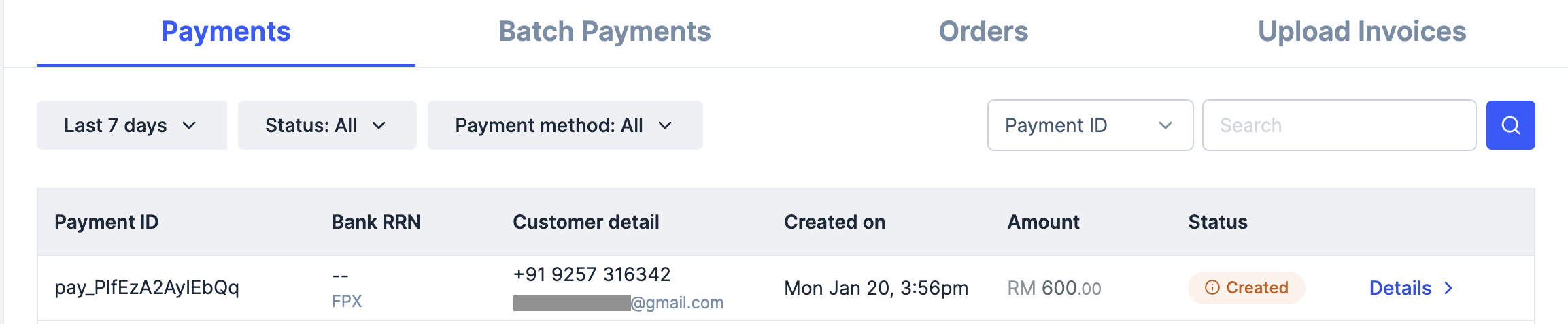
3. Go-live Checklist
Follow these steps before taking the integration live:1 Accept Live Payments
1 Accept Live Payments
Perform an end-to-end simulation of funds flow in the Test Mode. Once confident that the integration is working as expected, switch to the Live Mode and start accepting payments from customers.To generate API Keys in Live Mode on your Razorpay Curlec Dashboard:
- Log in to the Razorpay Curlec Dashboard and switch to Live Mode on the menu.
- Navigate to Account & Settings → API Keys → Generate Key to generate the API Key for Live Mode.
- Download the keys and save them securely.
- Replace the Test API Key with the Live Key in the Checkout code and start accepting actual payments.
2 Payment Capture
2 Payment Capture
After payment is
authorized, you need to capture it to settle the amount to your bank account as per the settlement schedule. Payments that are not captured are auto-refunded after a fixed time.- Auto-capture Payments (Recommended)
- Manually Capture Payments
Authorized payments can be automatically captured. You can auto-capture all payments using global settings on the Razorpay Curlec Dashboard. Know more about capture settings for payments.